|
Active Directory : Join in Domain from Clients
2017/01/15 |
|
Join in Active Directory Domain from Other Windows Clients. This example is based on Windows 10.
|
|
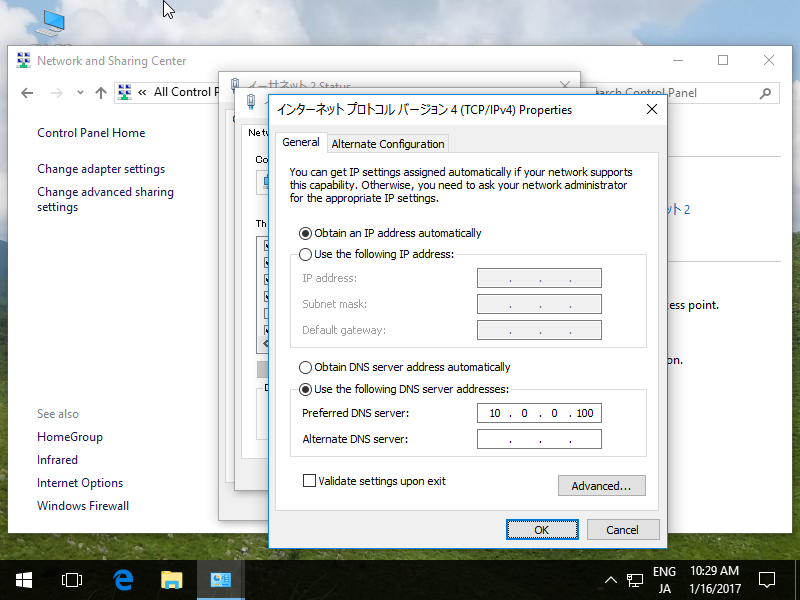
| [1] | Before setting, change to DNS settings to refer Active Directory Host. |
|
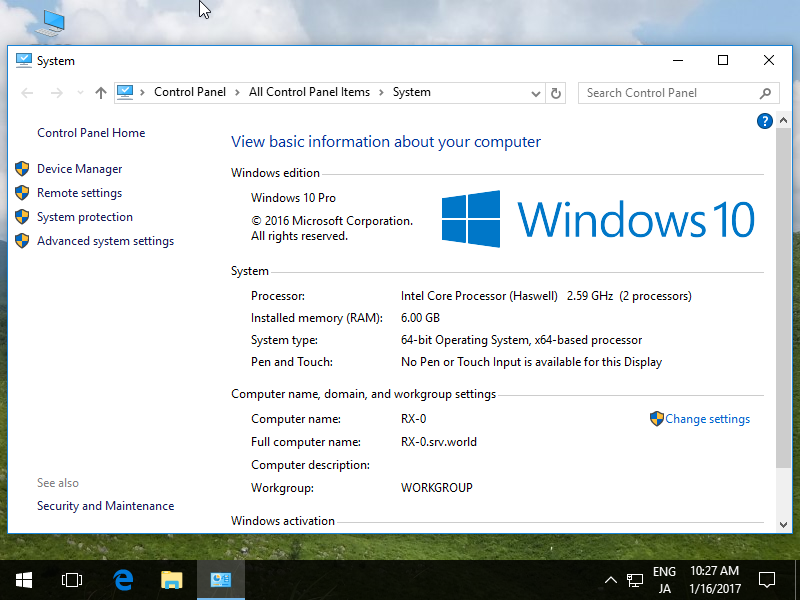
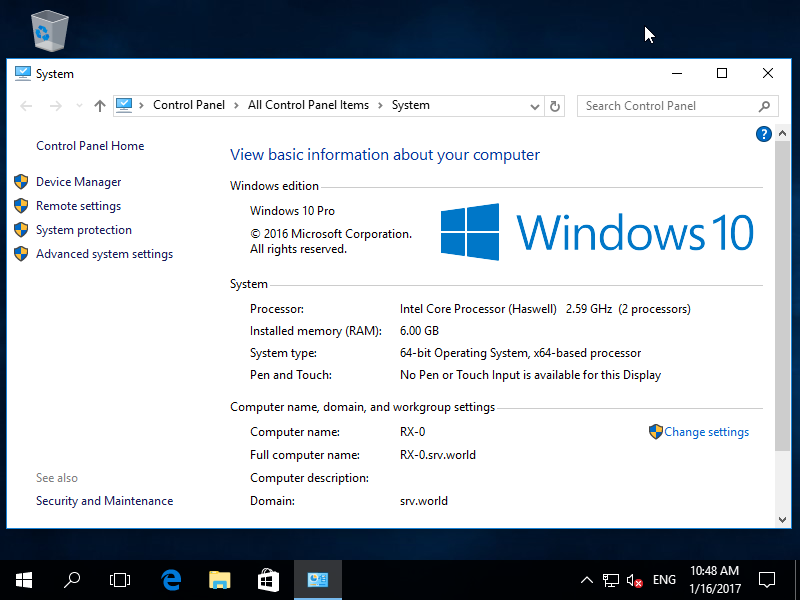
| [2] | Open [System] and click [Change settings] link which is lower-right. |
|
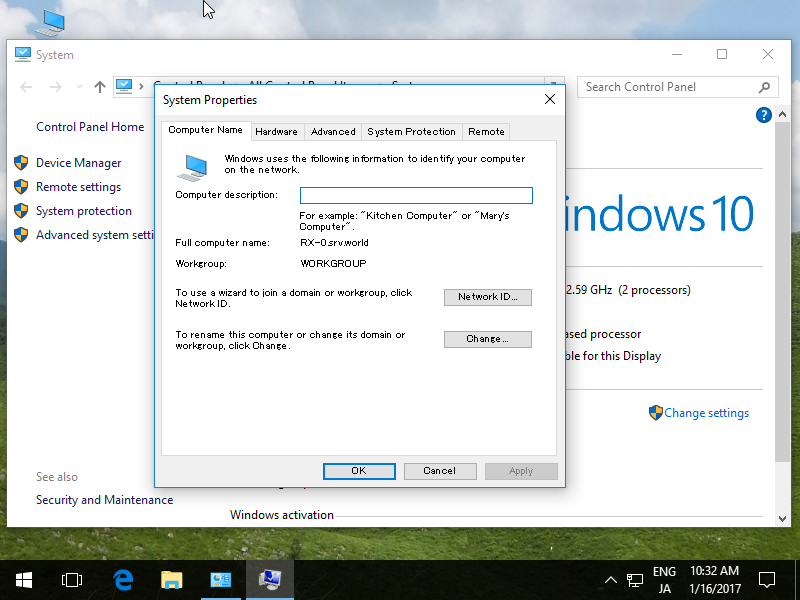
| [3] | Move to [Computer Name] tab and click [Change] button. |
|
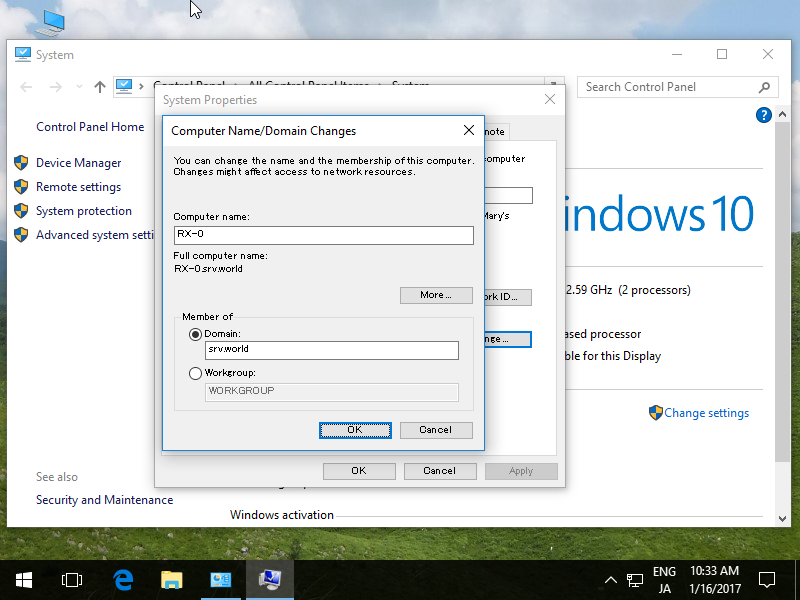
| [4] | Check a box [Domain] and input domain name and next, click [OK] button. |
|
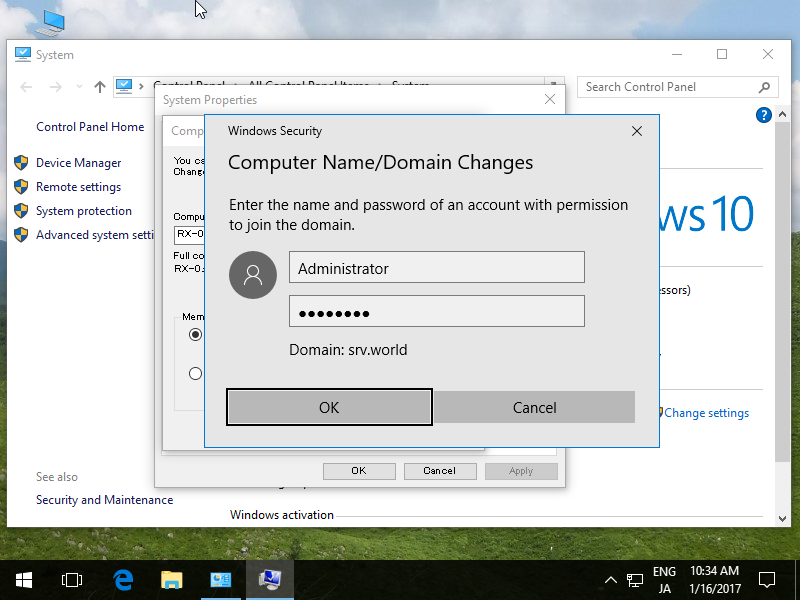
| [5] | Authentication is required, authenticate with Administrator or other priviledged Users. |
|
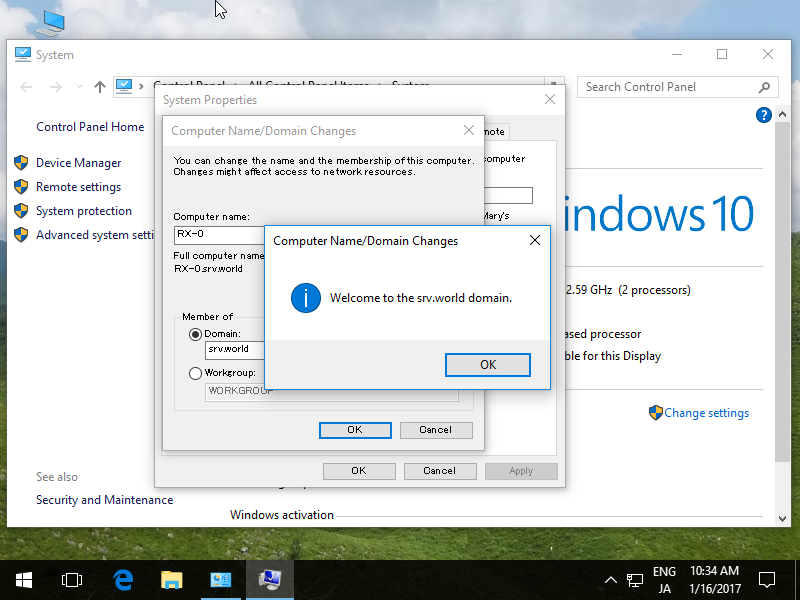
| [6] | After successing authentication, Welcome message is shown like follows. Restart the Computer once. |
|
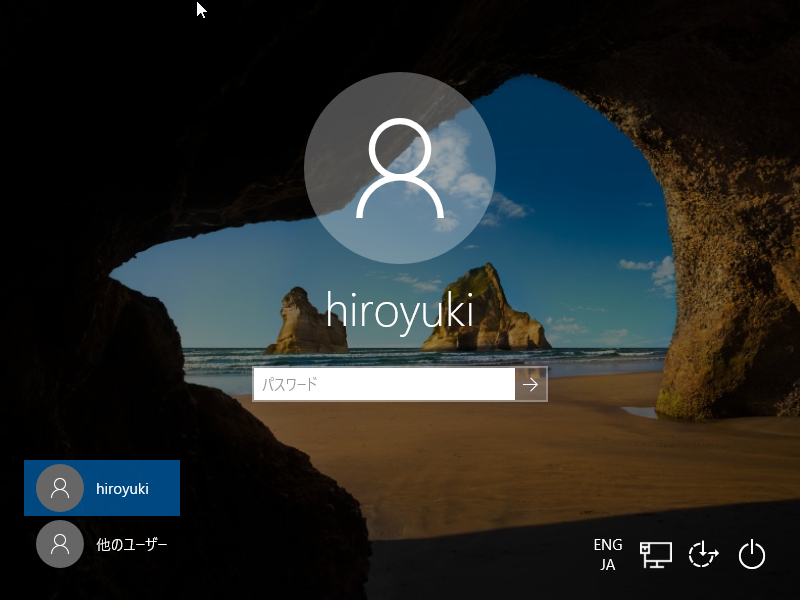
| [7] | On the logon screen after restarting Computer, click "another user" to switch Domain user to logon. |
|
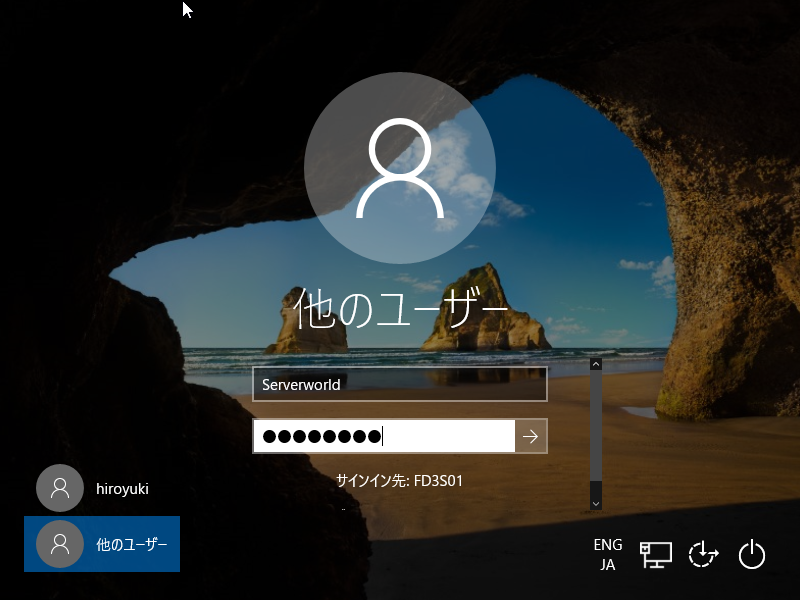
| [8] | Authenticate with a Domain user you added. |
|
| [9] | Just Logon to Active Directory Domain. |
|